It’s highly recommended when building your Microsoft PKI (Public Key Infrastructure) to have your Root CA offline after issuing the Enterprise Sub CA certificates. It’s recommended to minimize the access to the Offline Root CA as much as possible. The Root CA is not a domain joined machine and can be turned off without any problem.
One of the Key issue is the CRL generated from the Root CA, you need to set the CRL interval for a large value so that we don’t need to copy the CRL to an online location frequently and do not implement delta CRLs, because the publication of each delta CRL would require access to the offline root CA in order to copy the delta CRL to an online publication location. In order to change the CRL interval you need to:

- Turn on the Offline Root CA and login with Admin account
- Open the Certification Authority Console
- Right Click on the “Revoked Certificates” and click Properties.
- Set “CRL Publish interval” to a large value (Default is 26 Weeks) and uncheck “Publish Delta CRL” check-box.
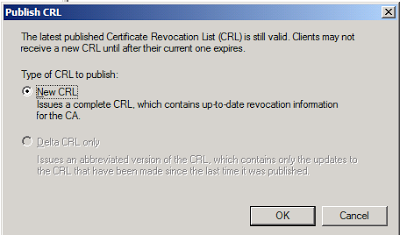
In order to Publish a new CRL from the offline Root CA to the Enterprise Sub CA you need to do the following:
- Publish a new CRL on the Root CA, this can be done by Right Click the “Revoked Certificates” – All Tasks – Publish
- Copy the CRL file from the Root CA located under %systemroot%\system32\certsrv\certenroll to the Sub CA Server
- Turn off the Root CA
- Copy the above file to the InetPub folder (HTTP Path) in the Sub CA server which is by default located under the C:\inetpub\wwwroot\Certdata
- Open an Admin Command Prompt and run the following command to publish it to the Active Directory (LDAP Path). certutil -f -dspublish ” C:\Inetpub\wwwroot\certdata\RootCA.crl
This process of renewing the CRL and publishing a new one is manually done since the Root CA is offline and thats why its better to make the CRL publish interval more than the default value so you won’t do it frequently. You may also want to set an automated reminder before the next renewal date.

 Random notes of a SysAdmin
Really excellent Blog Ronny – it’s amazing how many blogs miss the vital step of publishing the cert to the Active Directory (LDAP Path)
certutil -f -dspublish ”C:\Inetpub\wwwroot\certdata\RootCA.crl”
LikeLike
Really excellent Blog Ronny – it’s amazing how many docs miss the vital step of publishing active Directory (LDAP Path).
certutil -f -dspublish ”C:\Inetpub\wwwroot\certdata\RootCA.crl”
LikeLike
Ronny, great article on updating the CRL for an offline CA.
One more thing to add: Aside from publishing to ldap/AD using “certutil -f dspublish [cert file path]”, when publishing the CRL to an http location on your online windows server OS based CA, the default location to put the CRL is c:\windows\system32\CertSrv\CertEnroll, as well. You can determine the location by looking on IIS Manager of the CA/web server where the web based CRL distribution point is hosted.
LikeLike